Traveling should always be an exciting experience. However, nothing is more frustrating than landing in a new country, turning on your phone, and realizing your digital data line fails to work. Therefore, relying on a proper esim troubleshooting guide becomes essential to restore your connection instantly.
Fortunately, most connectivity errors are entirely common. Furthermore, you can resolve the majority of these glitches within just a few minutes by following systematic steps.
Quickly fixing mobile network errors while traveling abroad.
What to Do First: The 5-Minute eSIM Reset Checklist
Before you dive into complex technical problems, you should start here. This quick checklist solves a massive percentage of connection issues immediately:
Turn your mobile device completely off and back on.
Toggle Airplane Mode ON for 30 seconds, then turn it OFF.
Confirm that Mobile Data is enabled on your device.
Ensure your travel eSIM line is active in settings.
Enable Data Roaming, as this is essential when traveling abroad.
All Common eSIM Issues & How to Fix Them
1. eSIM Fails to Activate
What happens: Your profile stays stuck on “Activating” or fails completely. Quick fixes: Maintain a stable Wi-Fi connection during setup, restart your phone, and verify device compatibility.
2. “No Service” or Searching Errors
What happens: You see “No Service”, “Searching”, or “SOS only” on your screen. Quick fixes: Enable Data Roaming, manually select a local partner carrier in network settings, or restart your phone.
3. Data Works But No Signal / Slow Data
What happens: Signal bars appear, but webpages refuse to load. Quick fixes: Verify that your eSIM handles mobile data, check APN settings, and toggle data off and on.
4. Incorrect APN Settings
What happens: Your Access Point Name (APN) contains misconfigurations. Quick fixes: Access your mobile data settings and manually match the APN provided in your welcome email.
5. eSIM Not Selected as Data Line
What happens: Your phone utilizes your primary home SIM instead of the eSIM. Quick fixes: Navigate to your settings and set your travel eSIM as the default cellular data line.
6. Slow Internet Speeds
What happens: Videos buffer constantly or downloads crawl. Quick fixes: Switch networks, move to an open area, or close background applications.
7. eSIM Disappeared from Device
What happens: Your digital profile vanishes from your settings. Quick fixes: Restart your device. If deletion occurred, contact customer support immediately.
8. Device Incompatibility
What happens: Your smartphone lacks digital SIM support. Quick fixes: Check your phone model specifications (iPhone XS+, Samsung S20+, Google Pixel 3+).
9. Carrier-Locked Phone
What happens: Your carrier restricts foreign SIM profiles. Quick fixes: Contact your home network provider to request a permanent unlock.
10. eSIM Installed But Disabled
What happens: The profile exists on your device but remains toggled off. Quick fixes: Go to Settings ➔ Cellular and turn your line ON.
11. Dual-SIM Routing Conflicts
What happens: Confusion arises between your physical SIM and eSIM. Quick fixes: Designate your eSIM strictly for data and your home SIM strictly for voice calls.
12. Data Roaming Turned Off
What happens: Digital profiles require roaming toggled ON to connect locally. Quick fixes: Enable roaming specifically for your travel line.
13. Expired Plan or Exhausted Data
What happens: Your connection drops suddenly. Quick fixes: Check your data usage balance or purchase a plan top-up.
14. Carrier Outages
What happens: Local cellular towers experience temporary failures. Quick fixes: Wait out the outage or manually switch to an alternative partner network.
15. QR Code Scan Failure
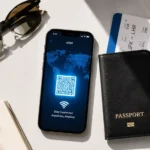
What happens: Your camera fails to read the activation setup code. Quick fixes: Increase your screen brightness, clean your camera lens, or use manual SM-DP+ activation codes.
💡 Pro Tip: Prevent network headaches altogether by choosing reliable global providers like Holafly.
Conclusion
Technology is meant to make travel seamless. Therefore, by utilizing a reliable esim troubleshooting guide, you can easily diagnose minor glitches, adjust your device settings, and enjoy uninterrupted high-speed internet worldwide.
🌍 Want to learn more about digital SIM cards? Check out our master Ultimate Travel eSIM Guide for provider comparisons, pricing, and activation steps.
Mohamed Kacha is a digital entrepreneur and tech writer specializing in international mobile connectivity and travel tech. With hands-on experience navigating roaming challenges and testing global eSIM solutions, Mohamed is dedicated to helping travelers stay connected seamlessly without breaking the bank